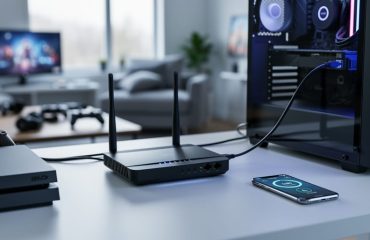
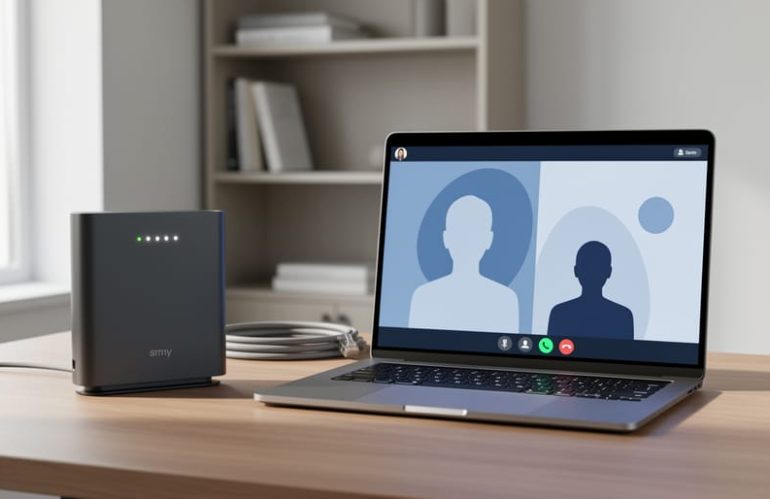
Setting up reliable internet for remote work requires three core components: a high-speed connection (minimum 25 Mbps download, 5 Mbps upload), quality networking equipment, and a dedicated workspace free from interference. Most remote workers can achieve a stable setup in two to three hours with the right equipment and a systematic approach to testing and optimization.
The shift to remote work across Lanaudière has made internet reliability a business-critical issue. A dropped video call or slow file upload isn’t just inconvenient anymore, it directly impacts your professional reputation and productivity. The good news? You don’t need to be a technical expert to build a dependable home office network.
Your internet setup is only as strong as its weakest link. That means evaluating your current service plan, upgrading outdated routers or modems, positioning equipment strategically, and establishing backup solutions for when problems arise. Small businesses and remote employees in our region face unique challenges, from rural connectivity limitations to managing multiple users on a single network.
This guide walks you through the complete process, from choosing the right internet service tier through final performance testing. You’ll learn which equipment upgrades deliver the best return, how to troubleshoot common connectivity issues, and when to call for professional support. Whether you’re setting up a home office for the first time or solving persistent connection problems, these steps will help you build the reliable internet infrastructure your work demands.
What You’ll Need to Get Started
Before you begin setting up your work-from-home internet connection, gather everything you’ll need to avoid frustrating delays halfway through the process. Having the right equipment and information on hand ensures a smooth installation and helps you identify any gaps before they become problems.
The core equipment includes a modem that connects your home to your internet service provider’s network and a router that distributes that connection throughout your workspace. Many ISPs in Lanaudière provide a combination modem-router unit, which simplifies setup for most remote workers. If you’re using separate devices, you’ll need an ethernet cable to connect the modem to the router, plus additional cables if you plan to hardwire your computer for the most stable connection possible.
Your essential checklist includes:
- A modem compatible with your ISP’s network (check with your provider if unsure)
- A wireless router rated for at least 802.11ac standard, or a combination unit
- Two to three ethernet cables (Cat5e or Cat6) in appropriate lengths
- Your ISP account information including account number and activation codes
- Documentation of your bandwidth needs based on your work type
- A backup internet solution like a mobile hotspot for critical work days
Understanding your bandwidth requirements prevents costly mistakes. Video conferencing typically needs 3-4 Mbps upload speed per participant, while large file transfers and cloud-based design work demand significantly more. If multiple people in your household work or study from home simultaneously, calculate the combined needs and add 25% as a buffer.
Local Lanaudière providers often offer equipment rental or purchase options. Renting makes sense if you expect your needs to change within two years, but purchasing your own equipment typically pays for itself over time and gives you more control over features and performance. Contact community-focused providers in your area to discuss options tailored to home-based businesses and remote work setups.
Important Considerations Before You Begin
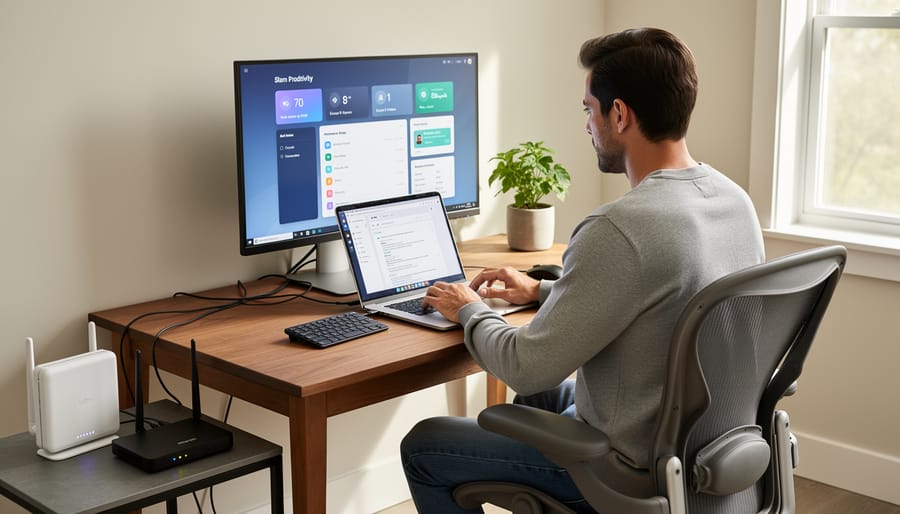
Before setting up your home internet for work, take time to understand a few critical considerations that will protect both your equipment and your business data.
First, electrical safety matters. Choose a location with proper electrical outlets that aren’t overloaded with other devices. Avoid power strips that are already near capacity, and keep your modem and router away from water sources or areas with poor ventilation. Overheating equipment performs poorly and can fail prematurely.
Data security becomes your responsibility when you work from home. Unlike office environments where IT departments manage security, your home network needs active protection. This means more than just setting a password, you’ll need to understand firewall settings, regular firmware updates, and secure access protocols.
Read your internet service agreement carefully before installation. Know your bandwidth limits, understand the terms around equipment rental versus purchase, and clarify what technical support your provider offers. Some Lanaudière providers include free setup assistance, which can save you time and prevent configuration errors.
Recognize when professional installation makes sense. If your home has complex wiring needs, if you’re setting up multiple access points for a larger space, or if your work depends on guaranteed uptime with backup systems, the cost of professional installation pays for itself in reliability and peace of mind.
Step-by-Step Setup Process
Step 1: Choose the Optimal Location for Your Equipment
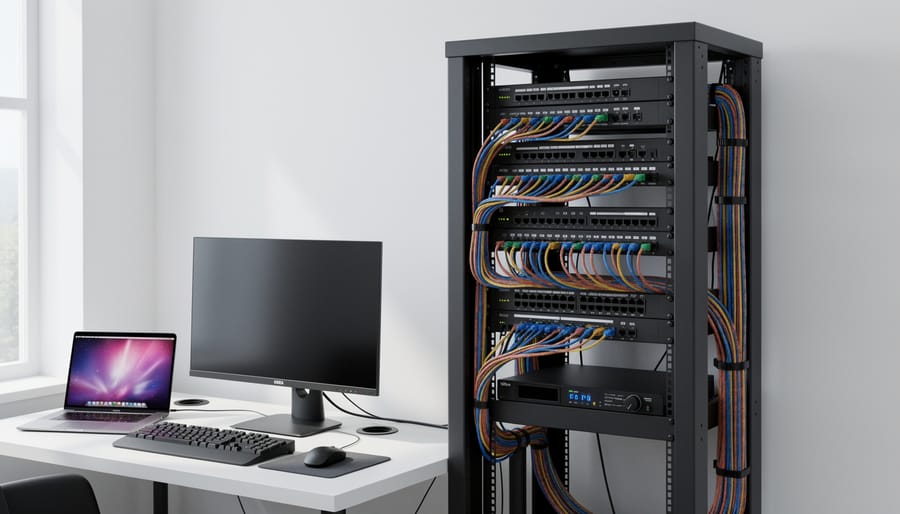
The physical location of your modem and router directly affects your internet performance. Place these devices as close to your work area as possible, ideally in the same room or one room away. This reduces signal degradation and ensures stronger, more stable connections during video calls and file transfers.
Position your equipment on a shelf or desk at least three feet off the floor. Avoid tucking routers inside closets, cabinets, or behind furniture. Walls, metal objects, and large appliances weaken Wi-Fi signals significantly. Keep your router away from microwaves, cordless phones, and baby monitors, which operate on similar frequencies and create interference.
Ensure adequate ventilation around both devices. Overheating causes performance drops and shortens equipment lifespan. Leave at least six inches of clearance on all sides. If your modem location is determined by where the service line enters your home, consider running an ethernet cable to position your router in a more central, strategic location that better serves your workspace.
Step 2: Connect and Configure Your Modem
Locate the cable that brings internet service into your home, this is usually a coaxial cable for cable internet or a phone line for DSL. Plug this cable firmly into the corresponding port on your modem, typically labeled “Cable” or “Line.”
Next, connect the power adapter to your modem and plug it into a surge protector. Never plug directly into a wall outlet, as power surges can damage equipment that’s essential for your work.
Wait three to five minutes for the modem to fully boot up. You’ll see indicator lights on the front panel cycle through different colors. When the “Online” or “Internet” light turns solid green, your modem has successfully connected to your service provider’s network.
Now activate your service. Most Lanaudière internet providers offer activation through their website or mobile app, you’ll need your account number and modem’s MAC address, which is printed on a label on the device. Some providers activate automatically when they detect your modem online.
If lights remain amber or red after ten minutes, contact your provider’s technical support before proceeding.
Step 3: Set Up Your Router and Secure Your Network
Connect your router to the modem using an ethernet cable, typically into the port labeled “WAN” or “Internet.” Plug the router’s power adapter into an outlet and wait two minutes for it to boot up.
Using a computer or phone, locate your router’s default network name (printed on a sticker underneath the device) and connect to it. Open a web browser and type the router’s IP address, usually or listed on that same sticker. Log in with the default credentials provided.
Your first priority is creating a strong password. For business use, make it at least 16 characters combining uppercase, lowercase, numbers, and symbols. Avoid common words, personal information, or anything related to your business name. Write it down and store it securely, this protects client data and confidential work.
Next, rename your network to something professional but non-identifying. “JohnSmithConsulting” reveals too much; “Office_Network_5G” works better.
Enable WPA3 encryption if available, or WPA2 at minimum. Disable WPS (Wi-Fi Protected Setup) since it creates security vulnerabilities. Change the router’s admin password too, keeping default credentials is a common entry point for attacks.
Save all settings before closing the configuration page.
Step 4: Connect Your Work Devices
Start with your primary work computer and establish the most stable connection possible. For desktop computers or laptops that stay in one location, use an ethernet cable directly from your router. This wired connection delivers consistently faster speeds and eliminates the interference issues that plague Wi-Fi, making it ideal for video conferences and large file transfers.
For mobile devices and secondary computers, connect via Wi-Fi using the secure network name and password you created in Step 3. Position laptops within the same room as your router when possible, and avoid connecting through walls or floors that can weaken the signal.
If multiple people work from your home, document which devices connect to your network and label them clearly in your router’s device list. Most modern routers let you assign priority levels to specific devices. Give your work computer and work phone the highest priority to ensure they maintain strong connections during peak usage times, even when family members stream video or play online games.
Step 5: Optimize Settings for Work Performance
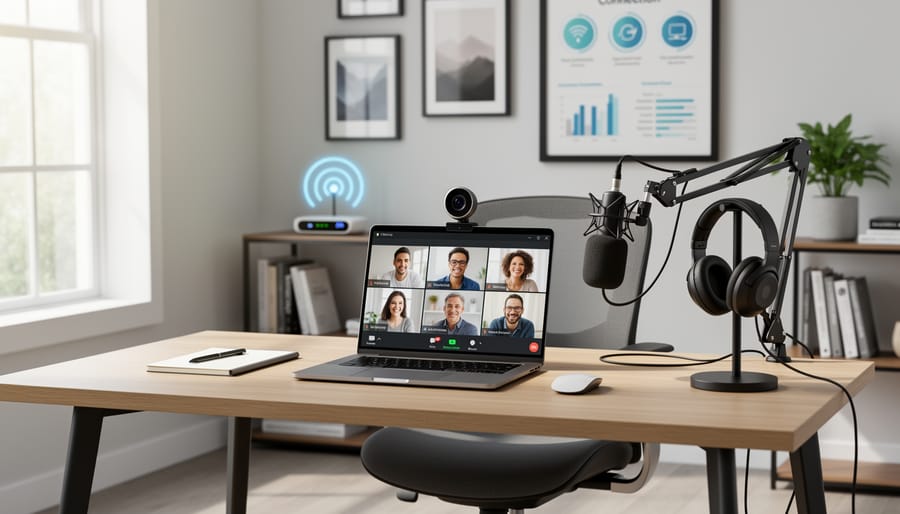
Once your basic connection is working, a few targeted adjustments can dramatically improve performance during video conferences and when using work applications. These settings might sound technical, but most modern routers make them surprisingly accessible.
Start with Quality of Service (QoS) settings in your router’s admin panel. QoS lets you prioritize certain types of traffic, like video calls or cloud applications, over less urgent activities like software updates. Look for a section labeled “QoS” or “Traffic Prioritization” and set video conferencing and business applications as high priority. This prevents your neighbor’s streaming or a background download from disrupting your important client call.
Next, check your Wi-Fi channel. Many routers automatically select channels, but in dense areas your network might be competing with neighbors on the same frequency. Access your router settings and try switching to a less crowded channel, your router may show a channel analysis tool, or you can use free apps like WiFi Analyzer to identify clearer channels.
Finally, if multiple people share your connection, consider setting bandwidth limits on non-work devices during business hours. This reserves sufficient speed for your professional needs without completely blocking others.
Testing Your Connection and Troubleshooting
After completing your setup, you need to verify that everything works reliably for your specific work tasks. Start with a speed test using services like or . For most remote work, you’ll want download speeds of at least 25 Mbps and upload speeds of 10 Mbps. Video conferencing requires steadier performance, so run the test three times at different hours to check for consistency.
Next, test real-world performance with the tools you use daily. Join a test video call on Zoom, Teams, or your preferred platform and check for lag or pixelation. Upload a large file to your cloud storage and time how long it takes. Open multiple work applications simultaneously to simulate a typical workday. If you experience buffering, frozen screens, or extended upload times, your connection may need adjustment.
Common issues often have straightforward fixes. Slow speeds might improve by moving closer to your router or switching from Wi-Fi to ethernet. Intermittent dropouts can signal interference from other devices, try changing your router’s channel in its settings. Websites loading slowly but streaming working fine suggests DNS issues, which switching to Google’s DNS server can resolve.
When basic troubleshooting doesn’t work, contact your provider with specific details. Note the exact times problems occur, which devices are affected, and what you’ve already tried. Lanaudière providers typically respond faster when you provide this information upfront. If issues persist after professional support, document the problems and review your service agreement, you may qualify for credits or need to explore alternative providers.
Maintaining Reliable Performance
Your internet setup isn’t a one-time task. Performance degrades over time without attention, and your connectivity needs will shift as your business evolves.
Schedule a monthly speed test at different times of day to catch patterns in slowdowns. If you consistently see speeds below 80% of what you’re paying for, contact your provider. Keep a log of these tests, it’s concrete evidence if you need to escalate service issues.
Restart your router every two weeks. This simple action clears memory leaks and refreshes connections that have become sluggish. Mark it on your calendar or set a phone reminder. While you’re at it, check that your equipment has adequate ventilation and isn’t collecting dust that blocks airflow.
Update your router’s firmware quarterly. Manufacturers release updates that patch security vulnerabilities and improve performance, but most routers don’t auto-update. Log into your router’s admin panel and check the manufacturer’s website for the latest version.
Watch for upgrade signals. If you’ve added team members, started hosting video meetings regularly, or moved to cloud-based software, your original setup may no longer suffice. Routers over four years old lack modern efficiency standards, replacing them can dramatically improve performance without changing your internet plan.
Establish a backup solution before you need it. A mobile hotspot plan or secondary provider prevents a single outage from halting your business. Many Lanaudière professionals keep a basic backup plan active for critical days when internet failure isn’t an option.
Common Questions About Work-from-Home Internet
Remote workers in Lanaudière often have similar concerns when establishing their home internet setup. These practical questions address the most common considerations for businesses and individuals working from home in our region.
What internet speed do I actually need for my type of work?
For video conferencing and basic online tasks, 25-50 Mbps download is typically sufficient for one user. If you handle large file transfers, use cloud-based design software, or have multiple people working from the same connection, aim for 100+ Mbps to maintain reliable performance during peak usage.
How much should I expect to pay for reliable work-from-home internet in Lanaudière?
Most business-grade or higher-tier residential plans suitable for remote work range from $70-120 per month depending on speed and provider. Some local providers offer competitive rates for Lanaudière businesses, so it’s worth comparing options beyond the major carriers.
What happens when multiple people need to work from home simultaneously?
Each active user doing video calls or data-intensive work requires roughly 25 Mbps. A household with two remote workers should consider at least 100 Mbps, while three or more may need 200+ Mbps to avoid slowdowns during overlapping meetings or uploads.
Should I have a backup internet option for critical work days?
Yes, especially if your work involves client meetings or time-sensitive deadlines. A mobile hotspot from a different carrier than your home internet provides redundancy, ensuring you stay connected even if your primary service experiences outages.
Understanding when to upgrade your setup is equally important. If you’re experiencing frequent buffering during video calls, slow file uploads that impact deadlines, or complaints from colleagues about your connection quality, these are clear signals your current plan isn’t meeting your work demands. Most providers allow you to upgrade without changing equipment, though older modems or routers may need replacement to support higher speeds effectively.
A reliable internet connection isn’t just a convenience for remote work, it’s the foundation of your professional success and business continuity. The setup steps you’ve followed today will serve your Lanaudière business well, ensuring consistent connectivity when it matters most.
If you encounter challenges or need guidance tailored to your specific situation, remember that local providers and community resources throughout Lanaudière are here to support you. Don’t hesitate to reach out for assistance as your connectivity needs evolve.
Strong internet infrastructure empowers our region’s businesses to compete effectively while maintaining the quality of life that makes Lanaudière such a remarkable place to work and live. Your investment in reliable connectivity today strengthens not just your own operations, but our entire community’s digital future.