
Setting up 5G internet for gaming in Lanaudière takes about 30 minutes and requires a compatible 5G modem or router, a data plan with sufficient speed and no restrictive caps, and confirmation that your location has solid 5G coverage. Once configured properly, 5G can deliver the low latency and high speeds competitive gaming demands, often matching or exceeding traditional wired connections.
The question isn’t whether 5G technology works for gaming. It does. The real challenge lies in verifying coverage strength at your specific address, selecting the right equipment, and optimizing your setup to avoid common pitfalls like network congestion during peak hours or signal interference from building materials. Many businesses and community organizations in our region are discovering that 5G offers a flexible alternative to cable or fiber, particularly in areas where traditional infrastructure remains limited or expensive to install.
This guide walks you through each step of evaluating, setting up, and fine-tuning 5G for gaming use. You’ll learn how to test your coverage before committing to a plan, which router settings make the biggest difference for reducing lag, and how to troubleshoot performance drops when they happen. Whether you’re running a gaming cafe, hosting esports events, or simply want reliable connectivity for your organization’s gaming initiatives, understanding how to properly deploy 5G ensures you get consistent performance that keeps pace with player expectations in 2026.
What You’ll Need to Get Started with 5G Gaming
Before you dive into optimizing your gaming experience with 5G, you’ll want to gather a few essentials and confirm that your setup can support this technology. Having everything ready will make the process smoother and help you avoid frustration halfway through.
First, check whether 5G internet service is actually available at your location. In Lanaudière, coverage varies significantly between urban centers like Joliette and Terrebonne and more rural municipalities. Contact local providers or check their online coverage maps with your specific address, don’t assume availability based on a neighboring town’s service.
You’ll need the right hardware and credentials to make this work:
- A 5G-compatible router or modem designed for home internet (not just a mobile hotspot)
- An active 5G home internet service plan from a provider serving your area
- Gaming devices with modern network capabilities, consoles like PS5 or Xbox Series X, or a PC with ethernet or Wi-Fi 6 support
- Ethernet cables (Cat6 or better) if you plan to use wired connections for lowest latency
- Your router’s admin login credentials, typically found on a sticker on the device or in your setup documentation
Most 5G home internet providers include the router with your service plan, but verify this when signing up. If you’re upgrading from an existing plan, confirm whether your current equipment supports 5G or if you need a replacement.
For gaming PCs, make sure your network adapter supports at least Wi-Fi 5 (802.11ac), though Wi-Fi 6 offers better performance with 5G speeds. Consoles from the current generation handle these speeds well, but older systems may bottleneck before reaching 5G’s full potential.
Finally, have your account number and any activation codes from your provider handy, you’ll need these during the initial setup process.
Before You Begin: Important Considerations and Warnings
Before committing to 5G for gaming, you need to understand whether it’s the right fit for your specific situation in Lanaudière. While 5G promises impressive speeds and low latency, several practical factors will determine whether you’ll actually experience those benefits.
Coverage remains the biggest variable, especially in Lanaudière’s rural communities. Even within the same municipality, signal strength can vary dramatically between neighbourhoods. A home near Joliette’s urban core will typically receive stronger, more consistent 5G signals than properties in rural sectors of Saint-Jacques or Saint-Côme. This inconsistency directly impacts gaming performance through ping spikes and connection drops.
Data caps present another critical consideration for serious gamers. Modern game downloads routinely exceed 50-100 GB, and online gaming sessions can consume 40-300 MB per hour depending on the title. If you’re downloading games regularly, streaming on Twitch simultaneously, or running system updates, you could hit monthly data limits quickly. Review your provider’s terms carefully, some 5G home internet plans throttle speeds after certain thresholds rather than charging overage fees.
Hardware compatibility matters too. Gaming consoles from the PS4 and Xbox One generation onwards handle modern network configurations without issues, but older systems or legacy gaming PCs may struggle with certain 5G router settings. Check that your devices support the network protocols your 5G router uses.
Finally, consider alternatives. If fiber internet is available at your location, it often delivers more consistent performance for gaming than 5G, particularly for organizations requiring dedicated internet with guaranteed bandwidth. 5G shines brightest where cable and fiber aren’t options or where you need installation flexibility.
Step-by-Step: Setting Up 5G Internet for Optimal Gaming Performance
Step 1: Position Your 5G Router for Maximum Signal Strength
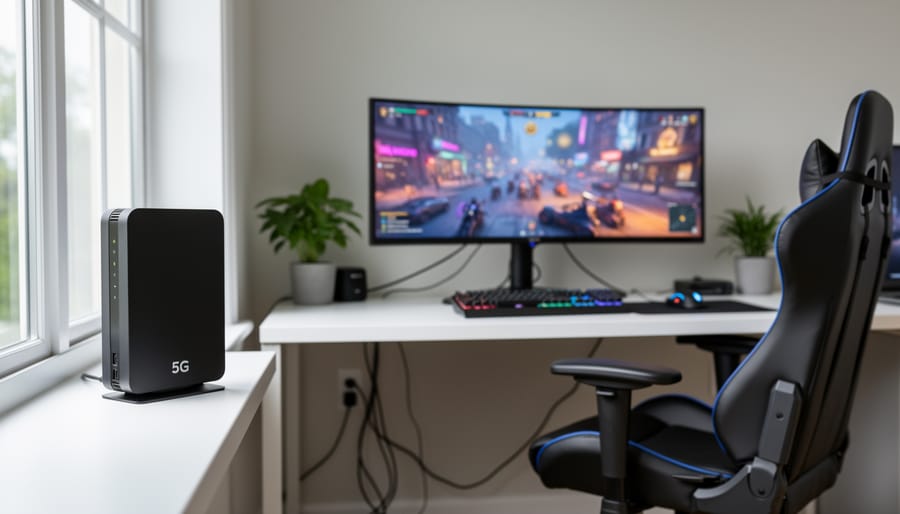
Start by placing your 5G router near a window facing the nearest cell tower. 5G signals travel line-of-sight and struggle to penetrate walls, especially the thick construction common in older Lanaudière buildings. Use your router’s signal strength indicator (usually LED lights or a mobile app) to test different spots.
In urban areas like Joliette or Terrebonne, you’ll typically have strong coverage and more flexibility with placement. Rural parts of Lanaudière require more precision, even moving the router a few feet can make a noticeable difference in ping times.
Keep the router elevated, ideally on a shelf or table rather than the floor. Avoid placing it near large metal objects, microwaves, or thick concrete walls. If you’re in a business with a metal roof, position the router away from direct overhead obstruction.
Test your placement by running a quick speed test from your planned gaming location. You’re looking for consistent speeds and stable latency, not just peak numbers. Once you’ve found the sweet spot, mark it, you may need to reposition if signal quality changes seasonally.
Step 2: Connect Your Gaming Devices
Once your router is positioned, connect your gaming hardware using the method that matches your performance needs.
For competitive gaming or streaming, plug an ethernet cable directly from your router to your PC or console. This wired connection cuts out wireless interference and typically delivers 5-10ms lower latency than Wi-Fi. Most modern routers include four or more ethernet ports on the back panel. Simply run a Cat5e or Cat6 cable (available at any electronics store in Joliette or Terrebonne) from an available port to your device’s network jack.
If a wired connection is impractical, say, your setup is upstairs from the router, use the 5GHz Wi-Fi band instead of 2.4GHz. Access your device’s network settings, select your 5G router’s network name (it often includes “5G” or “5GHz” in the name), and enter your password. The 5GHz band offers faster speeds and less congestion than 2.4GHz, though walls and distance weaken the signal more quickly.
Mobile gamers can connect phones and tablets the same way through Wi-Fi settings. For handheld consoles like Nintendo Switch, navigate to System Settings, then Internet, and choose your network from the list.
Step 3: Access and Configure Your Router Settings
With your router positioned and devices connected, the next step is accessing your router’s control panel to unlock its gaming-optimized features. Open a web browser on any device connected to your 5G network and type your router’s IP address into the address bar. Most 5G routers use or, though some providers use custom addresses printed on a label underneath the device. When prompted, enter your admin credentials. Default usernames are typically “admin” or “user” with passwords like “admin,” “password,” or a unique code listed on your router’s label.
Once logged in, you’ll see the dashboard interface. Look for sections labeled “Advanced Settings,” “Network Configuration,” or “QoS” (Quality of Service). The layout varies by manufacturer, but gaming-relevant settings cluster in these areas. If this is your first time configuring a router, don’t worry, the process mirrors setting up reliable home internet for work, just with different priorities. Take a moment to familiarize yourself with the menu structure before making changes, and consider taking screenshots of default settings in case you need to revert later.
Step 4: Enable Quality of Service (QoS) for Gaming Priority
Quality of Service, usually shortened to QoS, tells your router which devices and activities matter most when your internet connection gets busy. Think of it as a priority lane: when someone in your house streams a movie while you’re gaming, QoS ensures your gaming traffic cuts to the front of the line, minimizing lag spikes.
To enable QoS on your 5G router, log into the admin panel (covered in Step 3) and look for a section labeled “QoS,” “Traffic Priority,” or “Gaming Mode”, the exact wording varies by manufacturer. Most modern 5G routers place this under “Advanced Settings” or “Network Management.”
Once you’ve found it, toggle QoS to “On” or “Enabled.” You’ll typically see options to prioritize by device (select your console or PC from a dropdown) or by application type (choose “Gaming” from preset categories). If your router asks you to rank traffic types, put gaming at the highest priority, followed by video calls, then streaming and general browsing.
Some routers offer automatic gaming detection, which identifies game traffic without manual setup. Enable this if available, it works well for most titles.
After saving your changes, the router applies these rules immediately. You don’t need to restart your devices, though rebooting the router helps if settings don’t seem active. When you optimize your network this way, you’ll notice smoother gameplay even when others share your connection.
Step 5: Optimize Network Settings for Low Latency
After prioritizing your gaming traffic with QoS, a few additional network tweaks can shave precious milliseconds off your latency and stabilize your connection.
Start by changing your DNS servers to faster alternatives. Your 5G router likely uses your provider’s default DNS, which isn’t always optimal for gaming. In your router settings, navigate to the DNS configuration and replace the existing entries with Google’s public DNS ( and ) or Cloudflare’s ( and ). These services typically resolve domain names faster, reducing the delay when connecting to game servers.
Next, enable UPnP (Universal Plug and Play) if it’s not already active. This feature allows your gaming devices to automatically configure port forwarding, which reduces connection errors and NAT-type issues that can cause matchmaking problems or voice chat failures. You’ll find this option under advanced network or security settings.
For devices you game on regularly, assign static IP addresses instead of letting them grab dynamic ones from DHCP. This prevents your router from reassigning addresses and potentially disrupting your QoS rules or port forwarding. Reserve an IP address in your router’s DHCP settings and link it to your device’s MAC address.
If you’re gaming over Wi-Fi, check your wireless channel settings. Switch to a less congested channel by using your router’s built-in analyzer or a mobile app that scans nearby networks.
Testing Your Setup and Verifying Performance
After completing your 5G router setup and optimization, you need to confirm the connection actually delivers gaming-grade performance. Start with a comprehensive speed test using tools like or, running multiple tests at different times of day to account for network congestion. Record your download speed, upload speed, ping (latency), and jitter for each test. For gaming in Lanaudière, you’ll want to test during evening hours when network traffic peaks, as this reveals your connection’s real-world performance when you’re most likely to play.
Beyond speed tests, launch an actual game and monitor in-game ping indicators. Most competitive games display latency to game servers in the corner of the screen or in server browser menus. Test on servers geographically closest to Lanaudière (typically Montreal or Toronto for Canadian servers) to establish your baseline performance. Play for 15-20 minutes during a typical gaming session and watch for ping spikes or connection drops.
If your numbers fall short of the targets above, revisit the gaming network tips from earlier steps, particularly router placement and QoS settings. Compare your 5G performance against your previous connection to verify you’re seeing an improvement. Document what times of day give you the best results, as this information helps identify whether peak-hour congestion affects your gaming experience.
If performance remains inconsistent after re-optimization, your 5G signal strength might be the limiting factor, especially in rural Lanaudière locations where coverage can be spotty.
Troubleshooting Common 5G Gaming Issues
Even a well-configured 5G setup can encounter hiccups during actual gameplay. If you’re experiencing high ping spikes or unstable connections, start with these quick fixes:
- Reposition your router closer to a window or higher elevation to improve signal reception
- Restart both your 5G router and gaming device to clear temporary network glitches
- Check your provider’s status page or social media for reported service outages in Lanaudière
- Update your router’s firmware through the admin panel to patch performance issues
- Pause bandwidth-heavy activities like streaming or downloads on other devices to reduce network congestion
Signal fluctuations during peak evening hours are common in densely populated areas of Lanaudière as more users connect simultaneously. If your connection consistently degrades between 7 PM and 10 PM, you may be experiencing network congestion rather than a hardware problem. The same troubleshooting steps that reduce connection drops for remote work apply here.
Contact your provider when issues persist after trying these fixes, or if you notice sudden performance drops that coincide with billing cycle changes (potential throttling). Have your account number ready, along with specific details: what times problems occur, which games are affected, your current ping and download speeds from a recent test, and your router’s model number. This information helps support teams diagnose whether the issue stems from your equipment, local tower capacity, or account settings.
Frequently Asked Questions About 5G for Gaming
Is 5G actually better than cable internet for gaming? It depends on your situation. Cable internet typically offers more consistent speeds and lower latency when functioning properly, but 5G can match or exceed cable performance in areas with strong coverage, particularly useful in Lanaudière’s rural zones where cable infrastructure is limited. If fiber or quality cable is available at your location, that’s usually the more stable choice. However, 5G shines as a competitive option where wired connections are slow, unreliable, or unavailable.
What latency can I realistically expect with 5G? In optimal conditions with strong signal, 5G gaming can achieve 20-40ms latency, which is excellent for most competitive gaming. Real-world performance in Lanaudière will vary based on your distance from the nearest tower and local network congestion. During peak evening hours, you might see latency climb to 50-70ms, which is still playable for most games but noticeable in fast-paced competitive titles.
Can multiple people game on one 5G connection simultaneously?
Yes, but performance depends on your plan’s bandwidth and the games being played. A typical 5G home internet plan can handle 2-3 concurrent gamers playing standard online games without significant issues, though bandwidth-heavy downloads or 4K streaming on other devices will impact everyone’s experience.
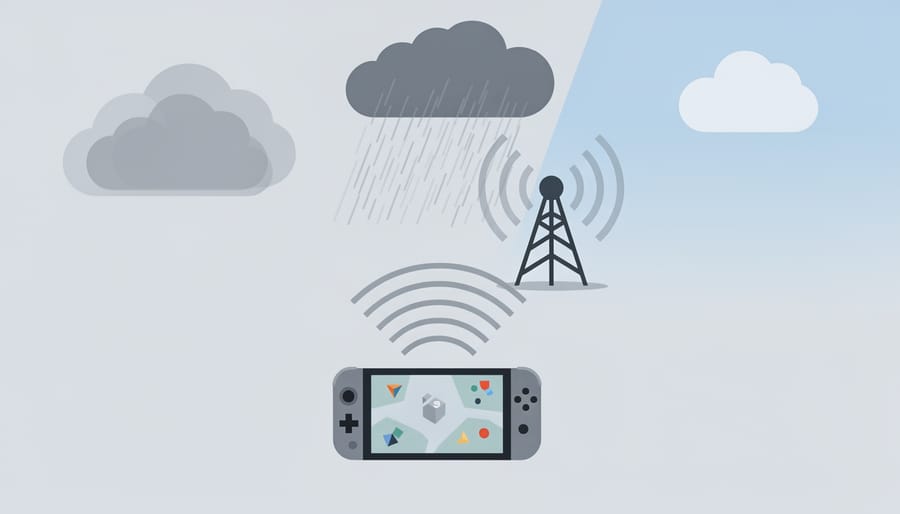
Does weather affect 5G gaming performance?
Heavy rain, snow, and storms can weaken 5G signals and increase latency, particularly in fringe coverage areas. The effect is usually modest, you might see a 10-20ms increase in ping during severe weather, but it’s more noticeable than with wired connections.
Is 5G gaming more expensive than traditional internet in 2026?
5G home internet plans are generally comparable to mid-tier cable packages, typically ranging from $50-80 monthly. For Lanaudière businesses or households where it replaces slower DSL or satellite, it often provides better value despite similar pricing.
The technology continues improving as providers expand coverage and upgrade infrastructure. What works marginally today in your area might perform significantly better six months from now as the network matures.
With proper setup and optimization, 5G internet can deliver the low latency and high speeds competitive gaming demands. Following the steps outlined in this guide, from strategic router placement to QoS configuration, you’ll position yourself to take full advantage of what 5G technology offers. The difference between a frustrating lag spike and smooth, responsive gameplay often comes down to these configuration details.
Don’t hesitate to test your setup thoroughly using the verification methods we covered. Real-world performance tells you whether your optimization efforts are working. If you encounter persistent issues, revisit the troubleshooting section or reach out to your provider with specific diagnostic information.
For businesses and organizations across Lanaudière looking to enhance their digital infrastructure, the right internet setup makes a measurable difference in productivity and user experience. At Connexion Lanaudière, we’re committed to helping our community maximize their internet performance. Whether you need guidance on choosing the best connectivity solution for your needs or coaching through technical challenges, our team is here to support your success. Strong internet isn’t just about speed, it’s about having a partner who understands both the technology and your local context.