Optimizing your network for gaming takes 30 to 60 minutes and can cut lag by 40% to 70% through a combination of router configuration, Quality of Service settings, and connection prioritization. The core method involves isolating gaming traffic on your network, securing bandwidth allocation, and eliminating common interference sources that cause latency spikes and packet loss during competitive play.
For businesses and community organizations in Lanaudière managing gaming spaces, esports facilities, or coworking environments where gaming occurs, network optimization directly impacts user satisfaction and retention. A youth center experiencing frequent disconnections during tournaments or a café offering gaming stations needs reliable, low-latency connectivity to serve its community effectively.
The optimization process addresses three critical performance barriers: bandwidth competition from simultaneous users, router inefficiencies that add 20 to 100 milliseconds of delay, and Wi-Fi interference that creates inconsistent ping times. Each factor compounds during peak usage hours, when multiple devices stream video, download updates, or run cloud backups while gamers need stable connections.
This guide walks through the complete optimization sequence, from measuring your baseline performance to configuring advanced router settings and verifying improvements. You’ll learn which adjustments deliver the biggest impact first and how to troubleshoot persistent lag issues specific to different game types and network environments.
No advanced networking certification is required. The steps use standard router interfaces available on consumer and small business equipment, with clear explanations of each setting’s purpose and effect on gaming performance.
What You’ll Need to Optimize Your Gaming Network
Before you begin optimizing your network, gather these tools and information. Having everything ready saves time and prevents frustration mid-process. Most items are things you already own or can access within minutes.
- Router admin credentials (username and password, usually printed on a sticker on your router)
- Information about your current internet plan (speed tier and data limits)
- At least one Ethernet cable, Cat6 or better, long enough to reach from your router to your gaming device
- A computer, tablet, or smartphone to access your router’s configuration page
- Basic device specifications for your gaming setup (console model, PC specs, or mobile device info)
Your router credentials let you access the settings where you’ll make changes. Check the bottom or back of your router for a label with this information. If someone changed the default password and you don’t know it, you’ll need to contact your provider or perform a factory reset.
Knowing your internet plan details helps you set realistic expectations. A reliable internet setup starts with understanding what speeds you’re paying for, so you can verify whether you’re getting what you should.
Cat6 Ethernet cables handle higher speeds and reduce interference compared to older Cat5 versions. They cost only slightly more and future-proof your setup. Measure the distance from your router to your gaming area before purchasing to ensure adequate length.
The device for configuration doesn’t need to be your gaming device. Any phone or computer connected to your network works for accessing router settings through a web browser. This flexibility means you can adjust settings even while your console or gaming PC is powered off.
Important Warnings Before You Begin
Before you start adjusting settings, take a few moments to protect yourself from common pitfalls that can disrupt your internet connection or even lock you out of your router.
Never update your router’s firmware while you’re in the middle of a gaming session or when others in your household are using the internet for critical activities. Firmware updates typically require a router reboot, which means everyone loses connectivity for several minutes. Schedule these updates during off-peak hours, and be aware that interrupted firmware installations can brick your router, requiring a factory reset or replacement.
If you’re using Connexion Lanaudière or another ISP-managed router, some settings may be controlled at the provider level. Contact your ISP before attempting changes to firewall rules, port forwarding configurations, or advanced network protocols. For Connexion Lanaudière customers, their local support team can guide you on which optimizations you can safely handle yourself and which require their assistance.
Keep your router’s default login credentials handy and consider backing up your current configuration file if your router offers this feature. Most modern routers include a backup option in their settings menu, creating a downloadable file you can restore if needed. This simple step takes less than a minute but can save hours of reconfiguration later.
Step-by-Step: Optimizing Your Network for Gaming
Step 1: Test Your Current Network Performance
Before you change anything, you need to know where you stand. Run a speed test using a free tool like or . Write down three numbers: your download speed (measured in Mbps), upload speed (also in Mbps), and ping (measured in milliseconds).
For gaming, ping matters most. Anything under 50ms is excellent, 50-100ms is playable, and above 100ms will cause noticeable lag. Jitter, which measures ping consistency, should stay below 30ms. Your download speed needs to meet the game’s minimum requirements, typically 3-6 Mbps for most online games, though higher is better for downloading updates. Upload speed becomes critical for streaming your gameplay or voice chat, aim for at least 1-3 Mbps.
Test your connection three times: morning, afternoon, and evening during peak hours when your household uses the internet most. If your evening ping jumps significantly higher than morning results, network congestion is your primary issue. Record these baseline numbers so you can measure improvement after each optimization step.
Step 2: Switch to a Wired Connection
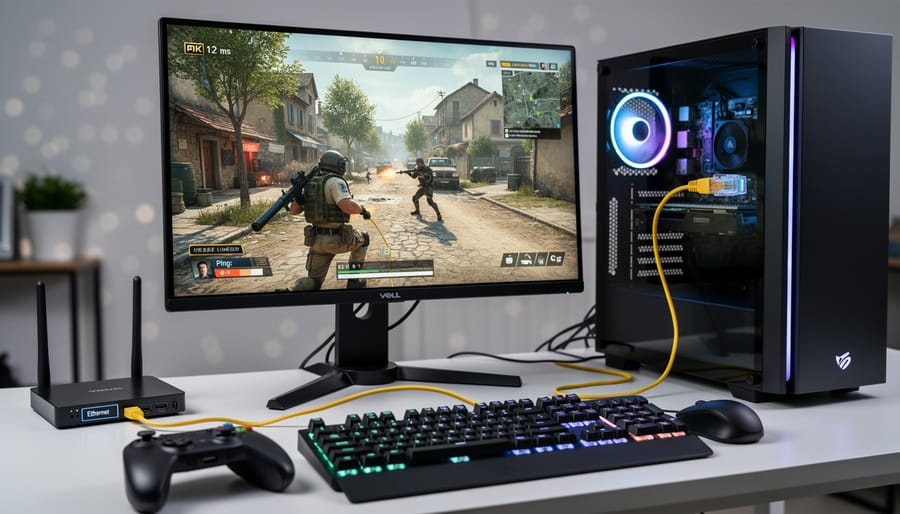
The single most effective network improvement you can make is connecting your gaming device directly to your router with an Ethernet cable. Ethernet beats Wi-Fi latency by a significant margin because wired connections eliminate wireless interference, reduce ping spikes, and provide consistent speeds without the packet loss that plagues even strong Wi-Fi signals during intense gaming moments.
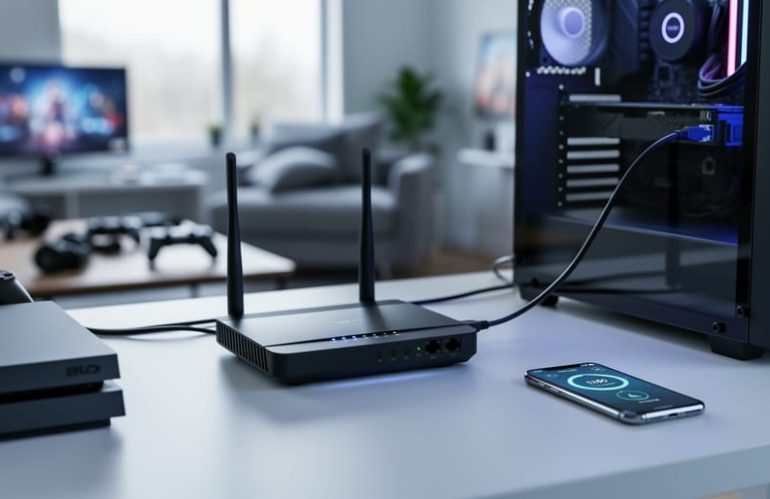
To make the switch, locate an available LAN port on your router (typically yellow or labeled 1-4 on the back) and connect a Cat6 or Cat6a Ethernet cable from that port directly to your gaming console, PC, or laptop’s Ethernet jack. The connection should activate automatically within seconds. If your gaming setup is in a different room, consider running cable along baseboards or through walls, which most Lanaudière households can manage with basic clips and patience.
When a direct cable run isn’t practical, powerline adapters offer a middle ground. These devices transmit network signals through your home’s electrical wiring: plug one adapter near your router and connect it via Ethernet, then plug the second adapter near your gaming device and connect that as well. Performance depends on your home’s electrical system, but modern powerline kits often deliver near-wired speeds without drilling holes or stretching cables across hallways.
Step 3: Position Your Router Strategically
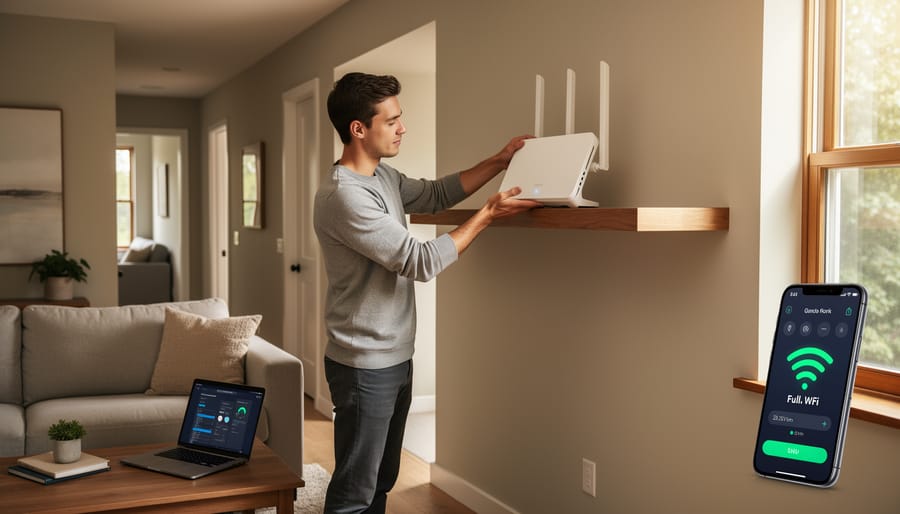
Even if you can’t wire every device, smart router placement dramatically improves wireless gaming performance. Position your router in a central, elevated location, ideally on the same floor where you game. Higher placement (top shelf, wall mount) reduces obstacles between your router and devices.
Keep your router away from thick walls, metal objects, aquariums, and large appliances that block or reflect signals. Maintain at least three feet of distance from microwaves, cordless phones, baby monitors, and Bluetooth speakers, all of which operate on similar frequencies and cause interference.
If your router has external antennas, point one vertically and one horizontally to cover devices in different orientations. For multi-story homes in Lanaudière, a central stairwell often provides the best coverage to upper and lower floors.
Avoid tucking your router inside cabinets, behind furniture, or in corners. Open air circulation also prevents overheating, which can degrade performance during extended gaming sessions.
Step 4: Enable Quality of Service (QoS) Settings
Quality of Service settings let you tell your router which devices and applications matter most. When someone starts streaming a 4K movie or downloading a large file, QoS ensures your gaming traffic gets priority access to bandwidth, preventing frustrating lag spikes mid-match.
To access these settings, open a web browser and type your router’s IP address into the address bar. Common addresses are or . You’ll need your admin credentials from the sticker on your router or the manual.
Once logged in, look for a section labeled QoS, Traffic Prioritization, or Bandwidth Management. The exact name varies by manufacturer. Navigate to this section and enable QoS if it’s turned off.
Most routers offer two configuration methods. Device-based priority lets you select your gaming console or PC from a list of connected devices and assign it high priority. Application-based priority lets you specify gaming traffic by port numbers or application type.
For simplest results, choose your gaming device and set it to highest priority. Some routers include preset gaming profiles that automatically recognize common game traffic. If available, enable this feature.
Save your changes and reboot the router if prompted. The settings take effect immediately, ensuring your gaming packets travel first while other household activities wait their turn during network congestion.
Step 5: Update Router Firmware and Optimize Wi-Fi Settings
Outdated router firmware can introduce security vulnerabilities and performance bottlenecks that directly impact your gaming experience. Log into your router’s admin panel and navigate to the firmware or system update section. If an update is available, schedule it during off-hours when no one is gaming or streaming. Never interrupt a firmware update once it starts, as this can brick your router.
After updating, optimize your Wi-Fi settings. Access the wireless configuration section and switch your gaming devices to the 5GHz band, which offers faster speeds and less interference than 2.4GHz. Use a Wi-Fi analyzer app to identify the least congested channel in your area, channels 36, 40, 44, and 48 typically work best for gaming.
Next, change your DNS servers to improve connection speeds. Replace your ISP’s default DNS with faster alternatives like Cloudflare () or Google () in your router’s network settings. Finally, disable features you don’t use: guest networks, WPS, and UPnP all consume processing power. If you rely on port forwarding for specific games, keep UPnP enabled but turn off everything else to dedicate maximum resources to your gaming traffic.
Step 6: Manage Background Applications and Device Load
Even with a perfectly configured router, background applications can quietly devour bandwidth and cause lag spikes during gaming sessions. Your gaming device isn’t the only culprit, other devices on your network matter too.
Start by checking what’s running on your gaming PC or console. On Windows, press Ctrl+Shift+Esc to open Task Manager and sort by network usage. Look for streaming services, cloud storage syncs, automatic updates, and torrent clients. Close anything non-essential before launching your game. On gaming consoles, pause downloads and disable automatic updates during play sessions through system settings.
Next, address other household devices. Streaming 4K video on another device consumes roughly 25 Mbps, enough to spike your ping significantly. Ask family members to pause streaming during competitive matches, or schedule downloads and backups for off-peak hours.
Set Windows Update to notify rather than download automatically, and configure cloud backup services like OneDrive or Google Drive to sync only during specific time windows when you’re not gaming. Most applications offer scheduling options in their settings menus.
This simple housekeeping often delivers noticeable improvements without any router configuration required.
How to Test Your Results and Know It’s Working
After completing the optimization steps, you need concrete proof that your efforts have paid off. Start by running the same performance tests you used to establish your baseline. Test your connection using the identical tools and conditions, same time of day, same devices, so you’re comparing apples to apples.
- Re-run your speed test and ping test from the same testing site you used initially
- Record your new latency, jitter, and download/upload speeds in a comparison chart
- Launch a typical game and monitor your in-game ping display for 15-20 minutes
- Note any lag spikes, disconnections, or rubber-banding during actual gameplay
- Compare your new measurements against your baseline numbers to calculate improvement
Look for these specific improvements in your results. Your ping should drop by at least 10-20ms if you switched to wired, and jitter should stay below 5ms consistently. In fast-paced shooters like Call of Duty or Valorant, you want sub-30ms ping for competitive play. MOBAs like League of Legends remain playable up to 60ms, while turn-based games tolerate higher latency without issues.
During actual gaming sessions, you’ll notice smoother character movement, quicker response to inputs, and fewer frustrating moments where enemies seem to shoot you before appearing on screen. Your connection icon should remain green and stable rather than spiking yellow or red.
If your improvements fall short of expectations after following every step, the limitation might lie beyond your home network. Infrastructure constraints in your area or an internet plan that’s simply too slow for modern gaming could be the culprit. Connexion Lanaudière can assess whether fiber upgrades are available in your Lanaudière neighborhood or recommend appropriate plan tiers for your gaming needs. Sometimes the solution isn’t more optimization, it’s better bandwidth from the source.
Common Network Optimization Questions
Does network optimization work for all types of online games?
Yes, these optimization techniques benefit all online games, though the impact varies by genre. Fast-paced competitive games like first-person shooters and fighting games see the most dramatic improvements, while turn-based or slower-paced games become more stable and reliable.
How often should I repeat the optimization process?
Test your network performance monthly and reconfigure settings whenever you notice degraded performance, add new devices to your network, or update your router firmware. Major changes in household internet usage patterns also warrant a fresh optimization pass.
Do I need an expensive gaming router to see improvements?
No, most modern routers include the QoS and configuration options needed for gaming optimization. Focus on proper setup and positioning of your current equipment before considering hardware upgrades, which should be your last resort rather than your first step.
What if my ISP connection is the bottleneck?
Contact Connexion Lanaudière to discuss infrastructure limitations in your area and explore whether a plan upgrade or service improvement is feasible. Sometimes the issue stems from regional network capacity rather than your home setup, particularly in rural parts of Lanaudière.
Beyond these technical questions, businesses and organizations running gaming spaces or community centers in Lanaudière should remember that network optimization shares principles with other digital initiatives. Just as optimizing your gaming network requires understanding your specific needs and constraints, improving small business online visibility demands tailored strategies for your local context. The core lesson applies across both domains: start with foundational improvements, measure results, and adjust based on real-world performance rather than assumptions.
Better gaming performance starts with small, manageable changes. Testing your baseline, switching to wired connections, enabling QoS, and managing background applications can dramatically reduce lag and improve your online gaming experience without requiring expensive equipment or technical expertise. Start with the easiest adjustments first and work through the steps at your own pace.
For businesses, organizations, and community centers throughout Lanaudière managing gaming spaces or public access networks, these optimization techniques create better experiences for your users. The digital access impact extends beyond individual enjoyment when community spaces provide properly optimized networks that enable smooth gameplay and digital participation.
If you’ve followed these steps and still experience persistent issues, your infrastructure may need professional assessment. Connexion Lanaudière offers support for more complex networking needs and can evaluate whether your current internet plan meets your gaming requirements. With the right adjustments and support, smoother online gaming is within reach for every player in Lanaudière.