You can optimize your internet for gaming on Windows 11 in about 20 minutes, with no special skills and no new hardware. The core method is simple: plug into your router with a cable, close the apps hogging your bandwidth, switch off background downloads and updates, and point Windows to a faster DNS. Together, these steps cut lag spikes, lower ping, and keep your connection steady when the match gets intense.
Why does it work? Most gaming lag doesn’t come from slow internet. It comes from a crowded connection, a weak Wi-Fi signal, or Windows quietly updating something in the background mid-game. Fix those, and you often see smoother play without paying for a faster plan.
Below, you’ll find what you need before you start, a few safety checks so nothing breaks, a clear step-by-step process, and a way to confirm your ping has actually improved. If the problem sticks around, we’ll point you to the next best move.
Here in Lanaudière, a stable connection matters for more than gaming. It helps families, students, and local businesses stay connected, and that’s the community we’re here to support.
What You Need Before You Start: Tools and Materials
Good news: you don’t need special gear or deep technical know-how to get started. Most of what’s below is already in your home. If you’re still building a solid foundation, a reliable internet setup is a helpful first read, but it isn’t required here.
Gather these before you begin:
- A Windows 11 PC where you have administrator rights, meaning you can install updates and change system settings.
- An Ethernet cable, the wired link that plugs your PC straight into the router.
- Your router’s login details, usually printed on a sticker on the device itself.
- A free speed test site, such as Speedtest or Fast.com, that also shows ping.
- A quick list of the phones, tablets and TVs connected to your network at gaming time.
- The speed advertised in your internet plan, which you’ll find on your provider’s bill or account page.
Ping is simply the time, measured in milliseconds, that your PC takes to send a message to a game server and get a reply. Lower is better. Your plan’s advertised speed matters because it tells you what to compare your test results against later.
Write down that plan speed now. In a rural corner of Lanaudière, real-world numbers can fall short of the promise, and having your starting point on paper makes it easy to see what each change actually improves.
Before You Change Anything: Safety Warnings and Stop Points
Tweaking your connection is safe when you go slowly and keep an easy way back. A few minutes of preparation now saves headaches later.
Start by noting your current settings. Take a quick screenshot of your network settings, DNS entries and power plan so you can restore them exactly as they were. Better still, create a restore point: search “Create a restore point” in the Windows 11 search bar, pick your main drive, and click Create. If anything feels off afterward, you can roll back in a couple of clicks.
Be wary of apps and registry hacks that promise to double your speed. No program can make your plan faster than what your provider delivers, and many of these tools bundle unwanted software or change system files in ways that are hard to undo. The steps in this guide use only built-in Windows 11 options, which is all you need.
Likewise, resist the urge to switch off Windows Update or security features permanently. Pausing a big download while you play is fine, but leaving your PC unpatched or unprotected creates bigger problems than a few milliseconds of lag.
Know when to stop and call your provider. If your connection stays slow or drops out even on a direct Ethernet cable, with the router restarted and background apps closed, the issue is likely on the line itself. Your provider can check signal quality and the equipment at your address, which matters especially in rural parts of Lanaudière.

Step-by-Step: Optimizing Your Windows 11 Connection for Gaming
Start With a Baseline and a Wired Connection
Before you change anything, find out where you stand. Run a free speed and ping test (try Speedtest by Ookla or the one built into your gaming platform) and write down your download speed, upload speed and ping. Do it while nothing else is streaming, then once more during a busy evening. That gives you a baseline to compare against later.
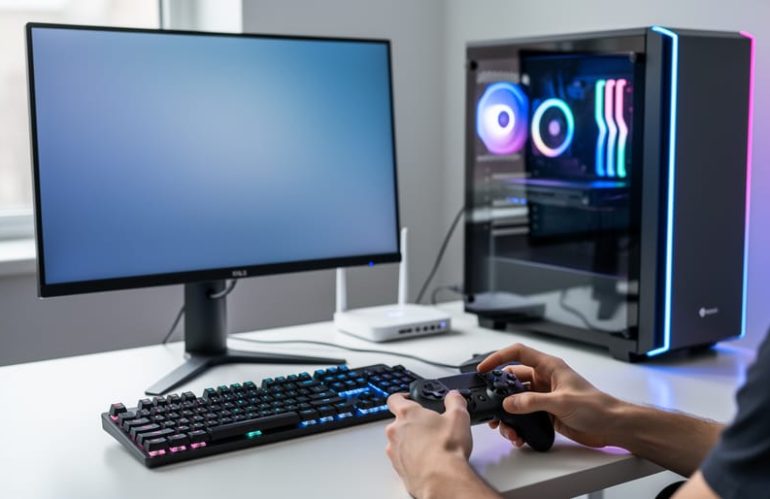
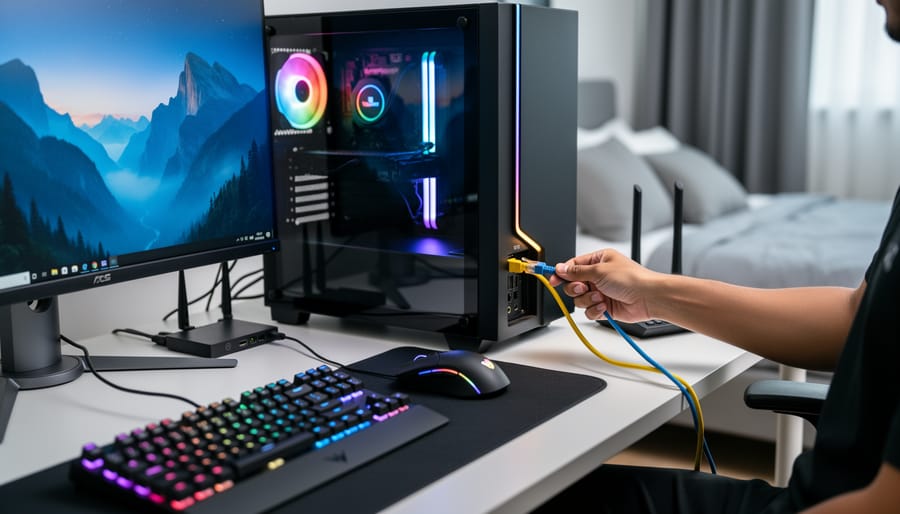
Next, plug in. An Ethernet cable gives your PC a direct line to the router, so you avoid the interference, walls and signal drops that make Wi-Fi unpredictable. The result is steadier ping and fewer sudden spikes mid-match.
Can’t run a cable? These simple Wi-Fi tweaks help:
– Move your PC closer to the router, ideally in the same room.
– Connect to the 5 GHz band, which is faster and less crowded than 2.4 GHz.
– Keep microwaves, cordless phones and other gadgets away from the router.
Here is the full sequence we’ll follow, with the first two steps covered above:
- Run a baseline speed and ping test.
- Switch to Ethernet or improve Wi-Fi placement.
- Turn on Windows 11 Game Mode.
- Close background apps and pause cloud syncing.
- Limit background downloads and update delivery.
- Update network adapter drivers.
- Set the power plan to high performance.
- Switch to a faster DNS server.
- Restart and update your router firmware.
- Prioritize your gaming device on the router (QoS).
If you’re in a rural spot where cabling and signal are tricky, looking at 5G for gaming may be a useful alternative.
Tune Windows 11 Settings That Affect Your Connection
Windows 11 does a lot in the background, and some of it competes with your game for bandwidth. A few quick changes keep your connection focused on play.
Turn on Game Mode. Open Settings, choose Gaming, then Game Mode, and switch it on. Windows then limits background tasks while a game is running.
Close background apps. Cloud sync tools, streaming services and browser tabs with video quietly eat bandwidth. Press Ctrl + Shift + Esc to open Task Manager, check the Network column, and close anything busy that you don’t need.
Limit update downloads during play. Windows can share updates with other PCs, which uses your upload speed. Go to Settings, Windows Update, Advanced options, then Delivery Optimization, and turn off “Allow downloads from other PCs.” While you’re in Windows Update, use “Pause updates” before a long session. In the Microsoft Store, open your profile menu, choose App settings, and turn off “App updates” so games and apps don’t update mid-match.
Update your network driver. A driver is the small program that lets Windows talk to your network adapter. Right-click the Start button, open Device Manager, expand Network adapters, right-click your adapter and choose Update driver. If that finds nothing, check the PC or adapter maker’s website for a newer version.
Choose the high performance power plan. Open Settings, System, Power & battery, and look for Power mode. Select Best performance. This stops Windows from throttling hardware to save energy, which can cause small hiccups, especially on laptops. Plug in your laptop while gaming for the best effect.
Improve DNS and Router Settings
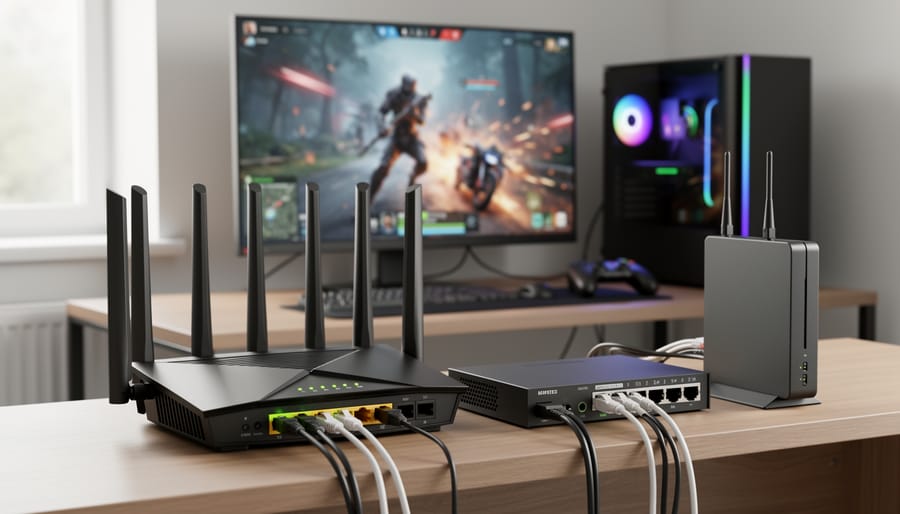
DNS is like your connection’s phone book: it turns a website or game server name into the address your computer actually dials. A faster phone book means quicker lookups when you connect to a match.
To switch to a public DNS in Windows 11:
1. Open Settings, then go to Network & internet.
2. Choose Wi-Fi or Ethernet, then select your connection.
3. Next to DNS server assignment, click Edit and choose Manual.
4. Turn on IPv4 and enter a public DNS, such as 1.1.1.1 and 1.0.0.1 (Cloudflare) or 8.8.8.8 and 8.8.4.4 (Google).
5. Save, then test your ping again.
Next, give your router some attention. A simple restart clears out built-up glitches, so try one every few weeks. Then check for firmware updates, which are software fixes from the manufacturer that can improve stability and security. You’ll usually find the update option in the router’s admin page, which you can open by typing its address (often 192.168.1.1) into your browser.
While you’re in there, look for QoS, short for Quality of Service. It’s a setting that gives your gaming PC priority over other devices, so a family movie night is less likely to cause lag spikes. If you’d like a fuller walkthrough, you can optimize your network with our step-by-step guide for Lanaudière gamers.
Router menus look different from one brand to the next, so don’t worry if yours doesn’t match what you see here. Your internet provider’s support team or a local IT partner can point you to the right screen.
Check That It Worked: Verification and Next Steps
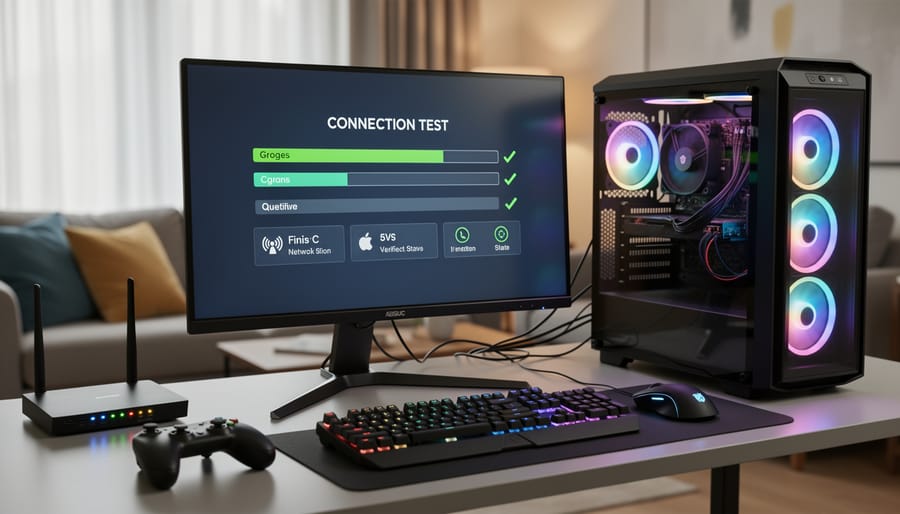
Once you’ve made your changes, it’s time to see whether they paid off. Run the same speed and ping test you used for your baseline, on the same device and ideally at a similar time of day, then compare the numbers side by side.
What matters most for gaming isn’t just download speed. Look for a lower ping (the delay between your PC and the game server), steadier results across several tests, and little to no packet loss. As a general rule, a ping under about 50 ms feels smooth for most games, and a stable connection with few spikes beats a fast one that jumps around. Results vary by game, server and provider, so treat these as rough guides rather than promises.
Then go beyond the test. Play a normal session and watch for rubber-banding, sudden freezes or lag spikes during busy moments. If those are rarer than before, your changes are working.
If you haven’t seen improvement, don’t get discouraged. Try these next steps:
– Test at different times of day. Evening slowdowns often point to network congestion rather than your PC.
– Check for crowded devices. Streaming, downloads and cloud backups on other devices can eat bandwidth, so pause them and test again.
– Contact your internet provider. Ask about line quality, signal levels and whether a plan upgrade makes sense. For organizations or busy households that need guaranteed stability, dedicated connectivity can be worth exploring.
Gaming Internet Questions Lanaudière Households Often Ask
Families across Lanaudière share the same few worries when games start stuttering, whether they live in town or out on a rural road. Here are the questions we hear most.
Is Wi-Fi good enough for gaming?
It can work, especially on the 5 GHz band close to your router. A wired Ethernet connection is still steadier, so use it whenever you can.
Does Game Mode really help?
It helps a little by limiting background tasks that compete for your PC’s attention. Think of it as a small tune-up, not a miracle fix, so pair it with the other steps in this guide.
What ping is acceptable for online games?
Lower is better, and most players find that a ping in the range of a few dozen milliseconds feels smooth for most games. Fast-paced shooters are the least forgiving, while slower games tolerate more delay.
Will a faster plan fix lag?
Not always. Lag usually comes from an unstable connection, Wi-Fi interference or a crowded home network rather than a lack of raw speed, so fix those first before paying for more.
Can several people stream while I play?
Often yes, but every device shares the same connection. If your game spikes when others are watching video, turn on QoS in your router or ask them to pause large downloads during your session.
Shared connections are common in busy households and in rural areas where options are limited. A little planning, like scheduling big downloads for off-hours, goes a long way. If you’ve tried everything and still struggle, your provider or a local IT partner can check the line quality for you.
Reliable internet matters well beyond gaming. It connects families, students and local organizations, and you can see the broader digital connection impact on digital connection impact across our community.
Optimizing your internet for gaming on Windows 11 doesn’t call for risky hacks or expensive gear. A few small, safe changes, like switching to Ethernet, tuning Game Mode, updating your drivers and adjusting your DNS and router settings, can add up to a smoother, steadier connection. Each step you take also makes the next one easier to measure.
The best place to begin is the simplest. Plug in a cable if you can, run a baseline speed and ping test, and keep those numbers handy. Then change one thing at a time and test again, so you know exactly what’s working. If the problem sticks around even on a wired connection, that’s your cue to talk to your provider.
Reliable internet matters well beyond the game. It helps families stay connected, supports students, and gives local businesses and organizations across Lanaudière a stronger footing online. When our connections improve, our whole community benefits.
Need a hand with your connectivity or your digital presence? Get in touch with Connexion Lanaudière. We’re happy to help you get set up and stay connected.